
To translate a voice memo on iPhone, use its transcript: Voice Memos cannot translate a recording by itself. Tap the recording, tap More (•••), choose Copy Transcript, paste it in Notes, select it and tap Translate. It is free on iPhone 12 and newer when the memo is in one of the 10 languages Voice Memos transcribes. For other memos, or to keep both languages in one note, share the memo to an app that transcribes and translates.
Which way works for your voice memo
| Your voice memo | Free on iPhone | What to do |
|---|---|---|
| In English, Spanish, Portuguese, Italian, French, German, Japanese, Korean or Chinese, on iPhone 12 or newer | Yes | Copy the Voice Memos transcript, then Translate in Notes or the Translate app |
| Same languages, on iPhone 11 or iPhone SE (2nd generation) | No transcript in Voice Memos | Share the memo to an app that transcribes audio, then translate the text |
| In another language, for example Russian, Dutch, Turkish or Arabic | No transcript in Voice Memos | Use a transcription service that supports that language, then translate the text |
| Transcript in the wrong language | Sometimes | See the language checks below before you translate |
Apple’s Voice Memos guides cover recording, editing and transcripts, and none of them describes a translate option. The transcript is the bridge: once the words are text, every iPhone translation tool can work with them.
Step 1: Copy the voice memo transcript
- 1Open Voice Memos. If it is not on your Home Screen, look in the Utilities folder.
- 2Tap the recording you want to translate.
- 3Tap the More button (•••), then choose Copy Transcript to copy all of it. To copy a part, choose View Transcript, select the text, then tap Copy.
Apple says Voice Memos transcribes speech on iPhone 12 or later in English (all variants), Spanish, Portuguese, Italian, French, German, Japanese, Korean, Simplified Chinese and Traditional Chinese, and not in every country or region. A recording made on iOS 17 or earlier is transcribed when you open it, if it contains speech. Source: Apple’s guide to viewing a Voice Memos transcription, iOS 27.
No View Transcript in the menu? Our guide on the Voice Memos transcript not showing goes through the model, iOS, language and region checks one by one.
Step 2: Translate the voice memo to English (or any language) in Notes
Notes is the better place for a long transcript: the text stays in one note you can scroll, search and share.
- 1Open Notes, create a note and paste the transcript.
- 2Select the text you want to translate, then tap Translate. If you don’t see Translate, tap the arrow for more options.
- 3Tap the language button and choose the languages to translate from and to, for example Spanish to English.
- 4Swipe down for more options. Tap Replace with Translation to swap the original for the translation.
To translate without an internet connection, tap Download Languages in the same panel. Source: Apple’s guide to translating text in apps, iOS 27.
Replace with Translation removes the original. To keep both, paste the transcript twice, one copy above the other, and translate only the second. For a lecture or a long meeting, translate a few paragraphs at a time: a wrong word in the transcript is easier to catch before it becomes a wrong sentence.
Or use the Translate app for a short memo
For a short voice message, or the one passage you need to understand, the Translate app is quicker:
- 1Open the Translate app.
- 2Tap the languages at the top to choose what to translate from and to.
- 3Tap Enter text, paste the transcript, then tap Next.
- 4Copy the translation, save it as a favorite, or tap the play button to hear it read aloud.
Download the languages in the Translate app to translate entirely on the iPhone, even offline. Which languages it supports is on Apple’s feature availability page. Source: Apple’s guide to translating words and phrases, iOS 27.
When the transcript is in the wrong language
A transcript in the wrong language translates into nonsense, so check it before step 2. Apple’s Voice Memos guide lists the 10 languages but describes no setting to choose one. For Notes, Apple says transcription works when the device language is a supported one, and Apple Community posters report the same pattern in Voice Memos: an iPhone set to English struggles with a German meeting.
The checks, and what to try, are in the transcript is in the wrong language. If the memo is in a language outside the 10, Voice Memos cannot transcribe it at all, and there is nothing to translate.
Where the free way stops
- The transcript sets the quality. Names, technical terms and people talking over each other are where errors start. Listen to the audio for any sentence that matters.
- 10 languages in, about 20 out. Voice Memos transcribes 10 languages. A memo in Russian, Ukrainian, Polish, Dutch or Turkish gets no free transcript on iPhone.
- Text, not audio. You get a translated text. Translate can read a passage aloud, but you don’t get a translated recording.
- Copy and paste, every time. Fine for one memo; it adds up for a weekly lecture or a language class.
- No timestamps. The copied transcript is one block of text, so the translation has no times to jump back to in the audio.
With NotizPro
NotizPro is our app. It does both steps in one place, on the iPhone, with no account. Translating a finished note is free for everyone.
- 1In Voice Memos, tap the recording, tap Share, then NotizPro.
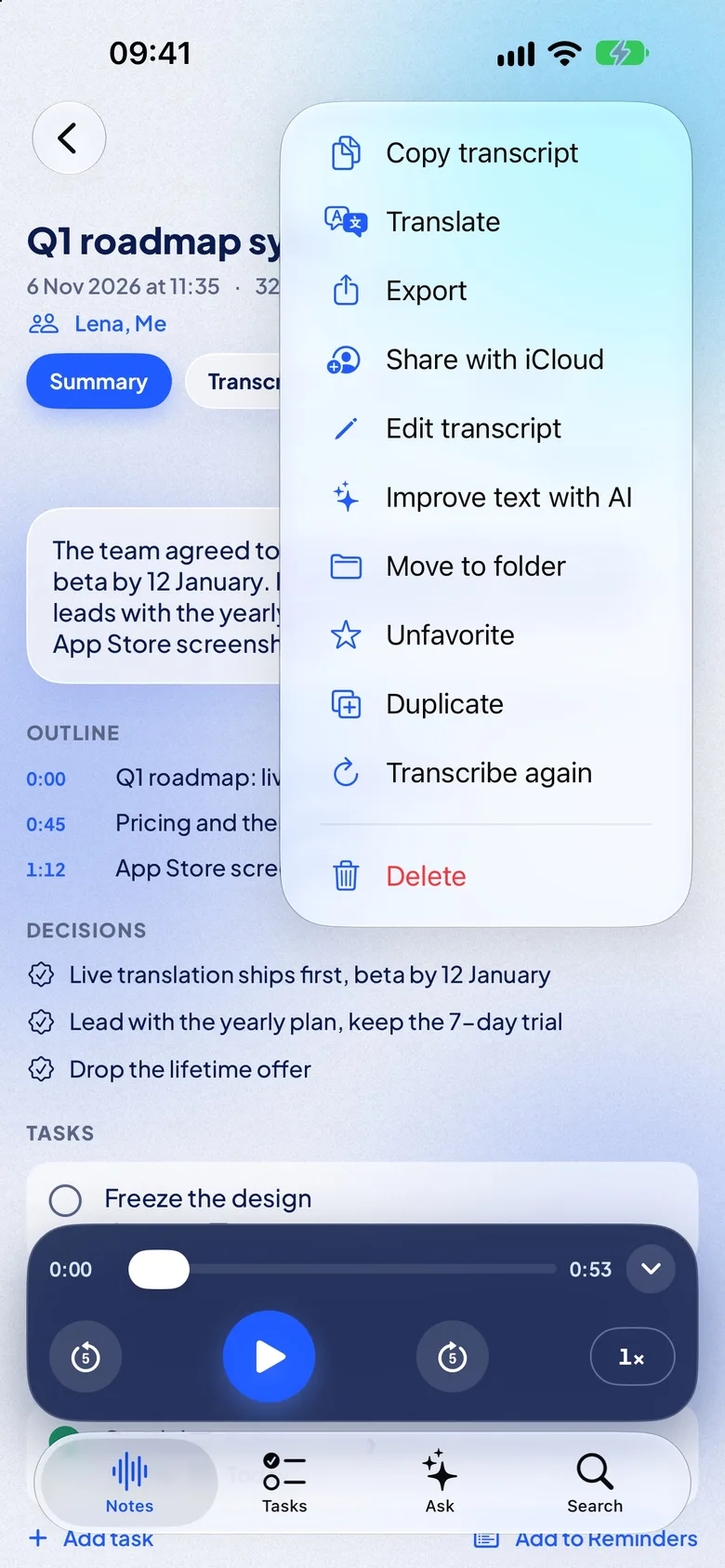
- 2NotizPro transcribes it on the iPhone. If the transcript came out in the wrong language, open the note’s menu, choose Transcribe again and pick the spoken language.
- 3Open the note, tap More, then Translate, and pick your language. The first time, iOS downloads the language once; after that it works offline.
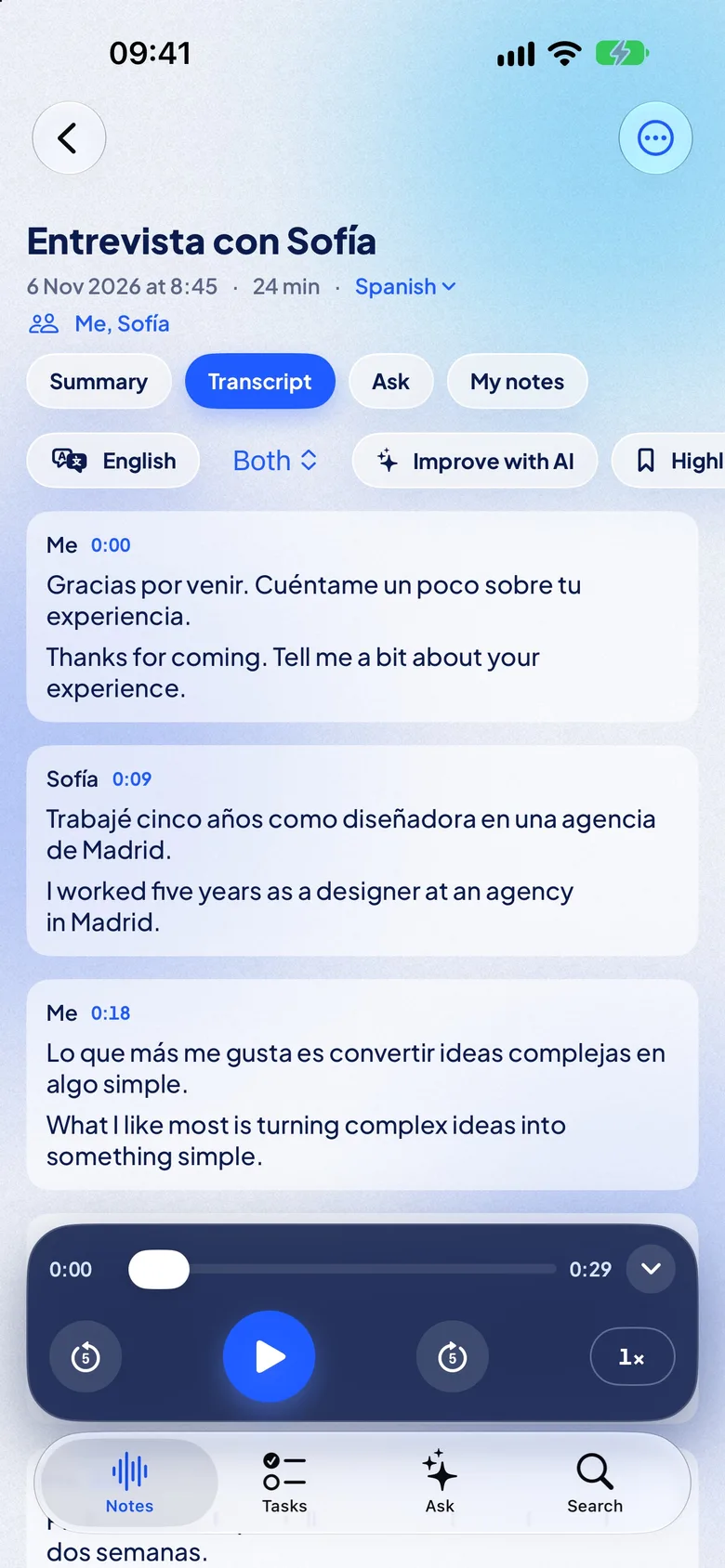
- 4Switch between the original and the translation, search in both, or export both languages as text, PDF or subtitles.
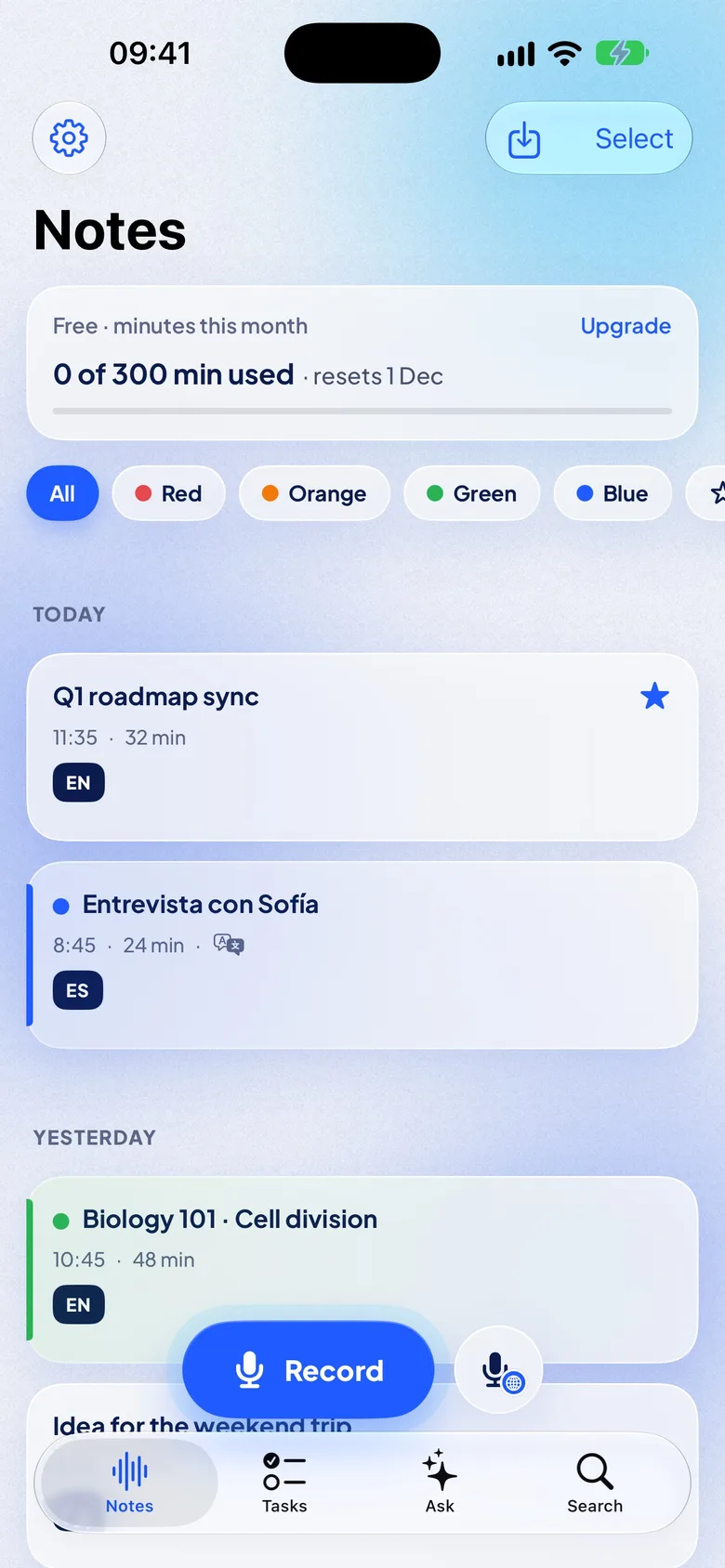
| Voice Memos + Notes | NotizPro | |
|---|---|---|
| iPhones | iPhone 12 and newer | iPhone 11 and newer, with iOS 26 |
| Transcribes | 10 languages, listed above | 21 languages, including Russian, Ukrainian, Polish, Dutch and Turkish (9 after a one-time download) |
| Choose the spoken language | Not described by Apple | Yes, and Transcribe again |
| Translates into | Apple’s Translate languages | 20 languages, on the iPhone |
| Keeps both languages | Only if you paste twice | Yes, sentence by sentence, with the audio times |
| Export | Copy the text | Bilingual text, Markdown, PDF, subtitles (SRT, VTT); free |
| Cost | Free | Translate a note: free. Free plan 300 min a month, imports up to 30 min each; Pro $1.99 a week, $4.99 a month or $29.99 a year, 7 days free |
The limits, plainly:
- Some languages need a download first. 12 of the 21 spoken languages use Apple’s built-in speech recognition; the other 9, including Russian, Ukrainian, Polish, Dutch and Turkish, need a speech model you download once. See which languages.
- Free imports up to 30 minutes per file. A longer memo can be trimmed to 30 minutes on import; Pro imports any length.
- Live translation while you record is Pro. For a meeting or lecture you have not recorded yet, see live translation.
- iPhone only, with iOS 26 or later. No published accuracy figure: test it on a memo you know well.
FAQ
Can Voice Memos translate a recording?
Not by itself. Apple’s Voice Memos guides describe no translate option. Copy the transcript, then translate it in Notes or the Translate app.
How do I translate a voice memo to English on iPhone?
Tap the recording, tap More, then Copy Transcript. Paste it in a note, select it, tap Translate and choose English. The memo must be in one of the 10 languages Voice Memos transcribes.
Can I translate a voice memo from Spanish to English for free?
Yes. Spanish is one of the languages Voice Memos transcribes on iPhone 12 or later, and Translate in Notes is free.
Can I translate a voice memo offline?
The translation, yes, after you tap Download Languages in the Translate panel. Apple’s Voice Memos guide does not say whether the transcript needs a connection, so test it in airplane mode first.
Why is my voice memo transcript in the wrong language?
Voice Memos has no language setting that Apple describes, and posters report that it follows the iPhone’s language. See the transcript is in the wrong language for what to try.
Can I get a translated audio file?
Not from Voice Memos or Translate. You get translated text; Translate can read a passage aloud. In NotizPro, Pro can read the translation aloud while you record.
Does this work for WhatsApp voice messages?
Voice Memos does not transcribe them. Share the voice message as an audio file to an app that transcribes audio, then translate the text.