
Open the recording in Voice Memos, tap More (•••) and choose View Transcript or Copy Transcript. It is free on iPhone 12 and newer, in 10 languages, and every new recording gets a transcript, so there is nothing to turn on. On an iPhone 11 or for another language, use an app that transcribes audio.
What your iPhone needs to transcribe voice memos
| Requirement | Voice Memos transcript |
|---|---|
| iPhone | iPhone 12 or later |
| Languages | English (all variants), Spanish, Portuguese, Italian, French, German, Japanese, Korean, Simplified Chinese and Traditional Chinese |
| Where | Not available in all countries or regions |
| Cost | Free, part of Voice Memos |
| Old recordings | Recordings made on iOS 17 or earlier are transcribed automatically when you open them, if they contain speech |
Source: Apple’s guide to viewing a Voice Memos transcription, iOS 27. Apple publishes this page for iOS 18 and later. To check your region, see Apple’s iOS feature availability page.
Watch the text while you record
You can watch the text appear as you speak. This is useful to check that the phone hears the speaker clearly.
- 1Open Voice Memos. If it is not on your Home Screen, look in the Utilities folder.
- 2Tap the Record button.
- 3Swipe up from the top of the waveform, then tap the Transcription button (the speech bubble).
- 4Tap Pause to pause and Resume to continue. Tap Done to save.
The current word is highlighted while you record. Tap the Transcription button again to go back to the waveform.
Convert a voice memo you already have
- 1In Voice Memos, tap the recording.
- 2Tap the More button (•••).
- 3Choose View Transcript, select the part you want, then tap Copy. Or choose Copy Transcript to copy all of it.
- 4Paste the text into Mail, Notes, a message or a document.
The transcript is also searchable. Tap the Search button in Voice Memos and type a word: the list shows every recording with that word in its title or its transcript. When you select a word in the transcript, the playhead jumps to that point in the audio, so you can listen to the exact moment. Source: Apple’s guide to viewing a transcription.
Want the short version instead of the full text? On an iPhone with Apple Intelligence you can summarize the transcript with Writing Tools. Our guide on how to summarize a voice memo on iPhone has the steps and the options for other iPhones.
Record in Notes and keep the text in the note
If you have not recorded yet and want the words in a note from the start, record in Notes instead. Apple’s guide to recording and transcribing audio in Notes gives these steps:
- 1Open Notes and create a note.
- 2Tap the Attachments button (the paper clip), tap Record Audio, then tap the Record button.
- 3Tap the Transcription button to see the live transcript. Tap Pause, then Done, when you finish.
- 4Later, tap the recording, tap the Transcription button, tap More, then choose Add Transcript to Note or Copy Transcript.
In the transcript, tap any sentence to play the audio from there, or use Find in Transcript from the More menu. One difference from Voice Memos: Notes transcribes only when the device language is one of the 10 supported languages. Deleting the audio in Notes also deletes its transcript.
Save the transcript as text, Word or PDF
Voice Memos has no “export transcript” button. Copying the text is the way out:
- Plain text: paste the transcript into a note in Notes, or into Mail to send it.
- Word or PDF: paste it into a new document in Pages, then export it. Apple’s guide to exporting from Pages on iPhone lists Word (.docx), PDF and plain text.
- The audio itself: tap the recording, tap More, tap Share, then Save to Files. You get an .m4a file by default, per Apple’s export guide.
The copied text has no timestamps and no speaker names. If you need either, see the limits below.
On an older iPhone or in another language
On an iPhone 11 or earlier, or for a language outside the 10 above, Voice Memos shows no transcript. You still have the audio file, so you need a tool that transcribes audio files:
- 1Save the recording to Files as an .m4a, as above, or open the Share menu.
- 2Open it in a transcription app or service that accepts audio files, from the share sheet or its upload button.
- 3Check the result against the audio before you rely on it.
Many of those tools process the audio on their servers, so read their privacy policy first, and keep confidential work recordings out unless your employer allows the tool. If the transcript is missing on a supported iPhone, see what to do when the Voice Memos transcript is not showing.
Where the free transcript stops
For most voice memos the built-in transcript is enough. It falls short in five places:
- Older iPhones: iPhone 11 and iPhone SE (2nd generation) run iOS 27 but get no transcript.
- Language: 10 languages. Ukrainian, Russian, Polish, Dutch and Turkish, for example, are not on the list.
- Speakers: Apple’s Voice Memos guide does not mention speaker labels. Apple documents them only for recorded phone calls, in Notes. Recording a meeting? See how to record a meeting on iPhone for phone calls, Zoom and Teams.
- Accuracy: Apple publishes no accuracy figure. Noise, distance and crosstalk all cost words, so keep the phone close to whoever speaks.
- Format: you get one block of text, without timestamps. Headings, a summary or action items are up to you, or to Apple Intelligence on a supported iPhone.
With NotizPro
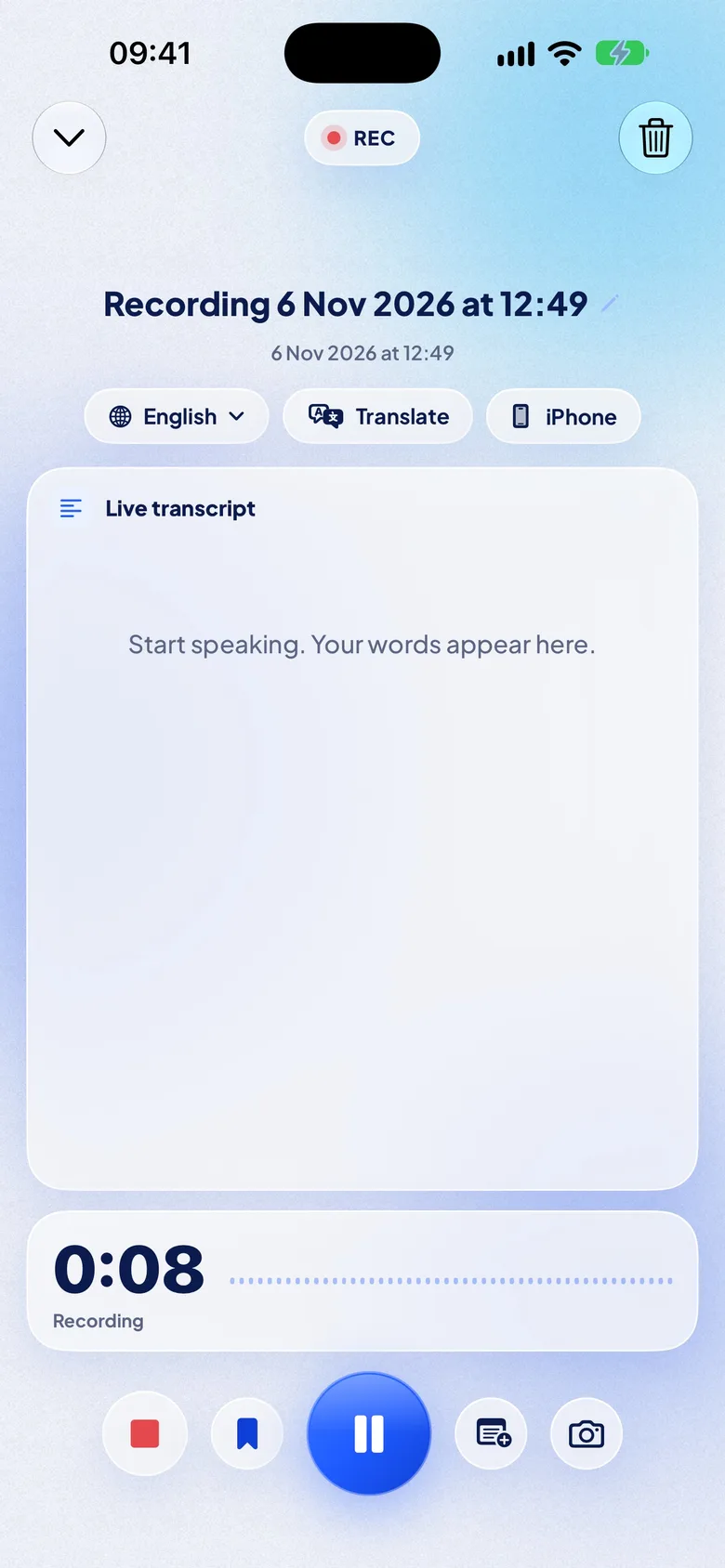
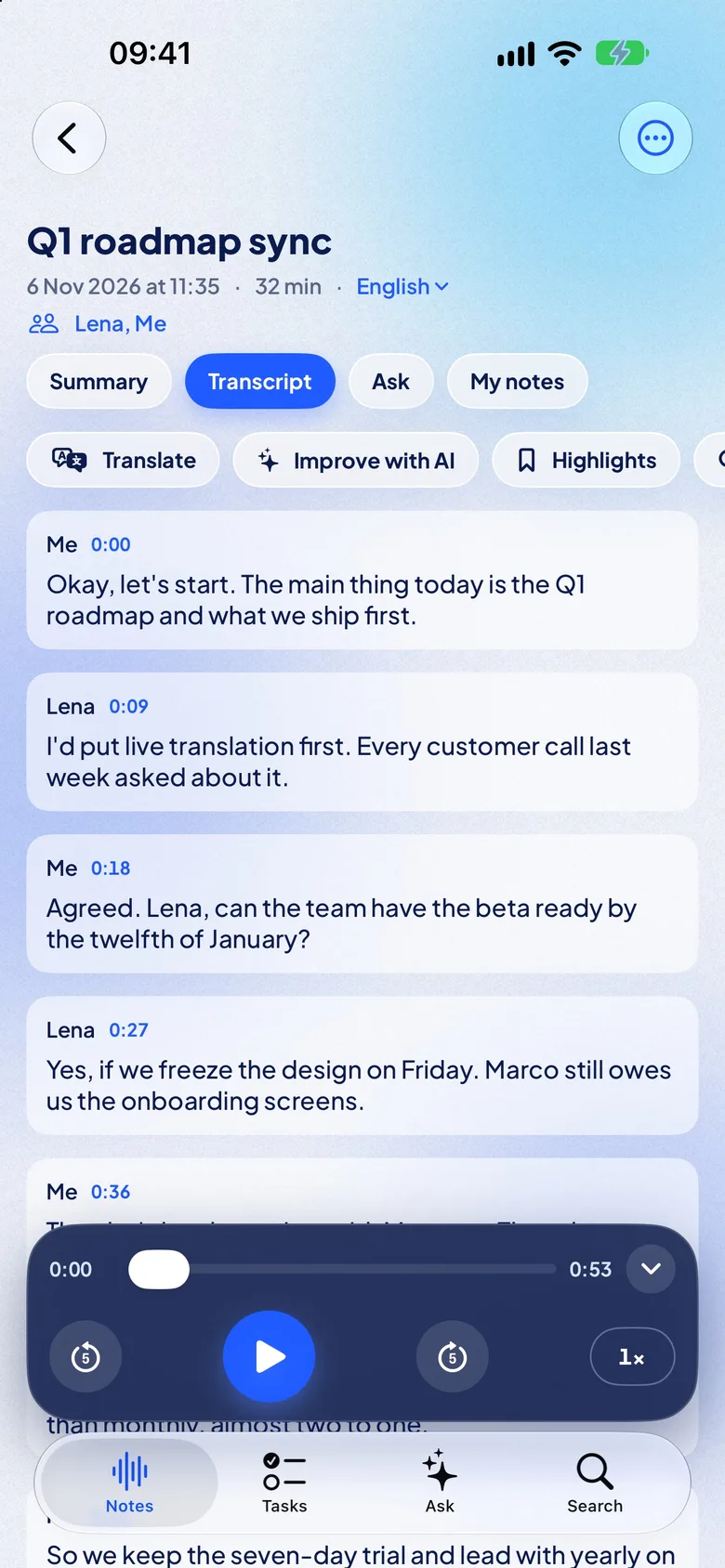
NotizPro is our app. It writes the transcript on your iPhone while you record, then the accurate version a few seconds after you tap Stop: punctuation, paragraphs and the time of every word. Tap a word to hear it. There is no account, and the audio stays on the iPhone unless you export it.
To transcribe a memo you already have, open it in Voice Memos, tap Share, then NotizPro. WhatsApp, Telegram, Mail and Files work the same way when they share the recording as an audio or video file, and you can import audio or video from Files or Photos.
It runs on iPhone 11 and newer with iOS 26, including iPhone SE (2nd generation), and transcribes 21 languages: English, German, French, Spanish, Italian, Portuguese, Dutch, Polish, Ukrainian, Russian, Turkish, Swedish, Finnish, Japanese, Korean, Chinese (Mandarin), Cantonese, Indonesian, Malay, Thai and Vietnamese. Twelve are built into iOS with nothing to download; the other nine need a one-time download, and Turkish, Swedish, Finnish, Malay and Vietnamese need an iPhone with 6 GB of memory or more.
Search finds a word across all your notes, in titles, transcripts, translations, speakers and tasks, and jumps to the exact second. Each note also lists its speakers with their talk time, and gets a free summary on the iPhone; see how to summarize a voice memo on iPhone. With Pro, live translation shows each sentence in your language about 2 seconds after it is spoken.
| Voice Memos | NotizPro | |
|---|---|---|
| iPhones | iPhone 12 and newer | iPhone 11 and newer, with iOS 26 |
| Languages | 10, listed above | 21, including Dutch, Polish, Ukrainian, Russian and Turkish; 12 built in, 9 with a one-time download |
| Speakers | Not in Apple’s Voice Memos guide | Found after recording, with talk time; rename from Contacts |
| Old memos | Transcribed when you open them | Share from Voice Memos; Free imports up to 30 min per file |
| Timestamps | Not in the copied text | Every word; export with or without timestamps |
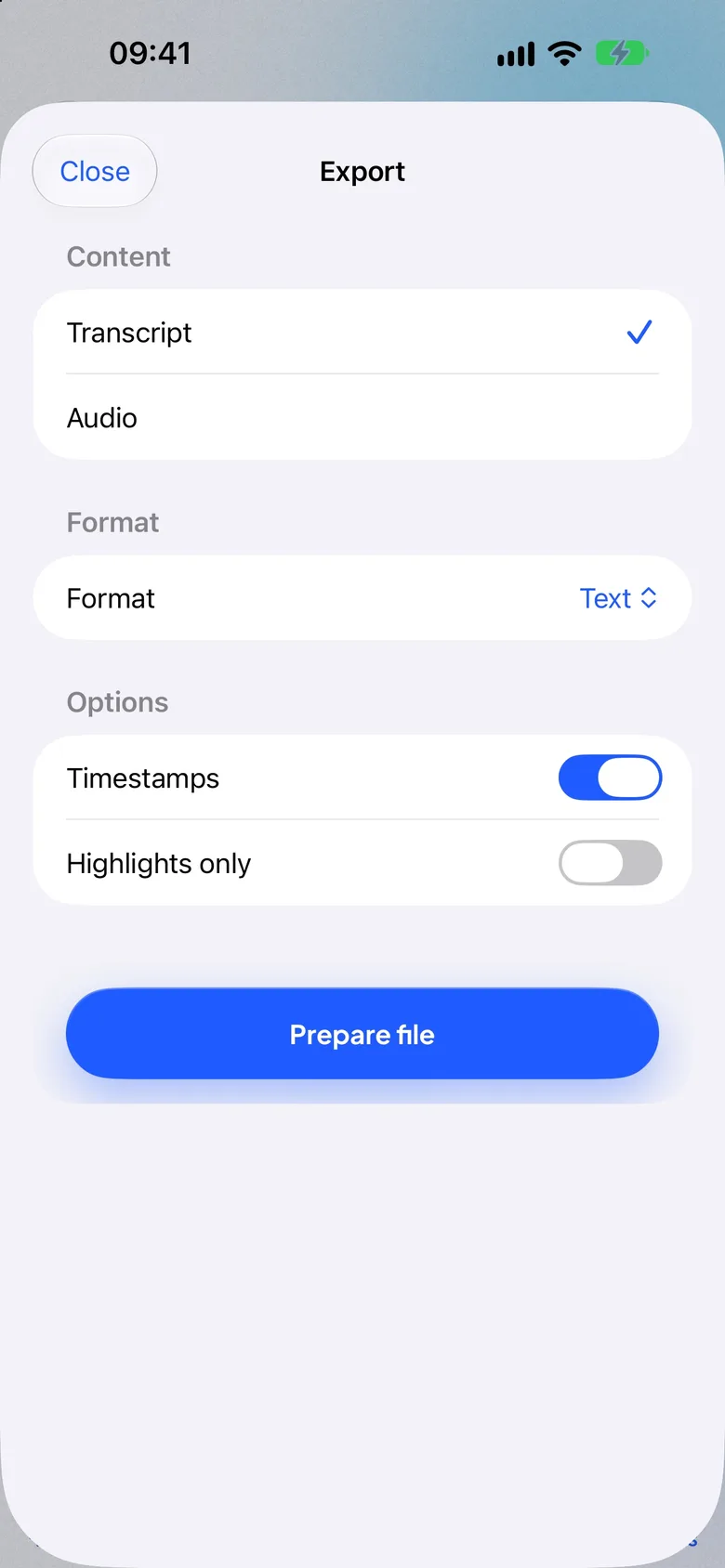
| Export | Copy, then Pages for Word or PDF | Text, Markdown, PDF, subtitles (SRT, VTT), audio; free for everyone |
| Cost | Free | Free 300 min a month; Pro $1.99 a week, $4.99 a month or $29.99 a year, 7 days free |
The limits, plainly:
- Free has limits. 300 minutes a month, 30 minutes per recording (then Continue as Part 2), and imports up to 30 minutes per file. Pro has no limit.
- Some languages need a download. Dutch, Polish, Ukrainian, Russian, Turkish, Swedish, Finnish, Malay and Vietnamese need a one-time download of a speech model; the last five need an iPhone with 6 GB of memory or more.
- Speakers after the recording, not live. Check the names in the saved note.
- iPhone only. It needs iOS 26 or later.
- No published accuracy figure. Test it on a recording you know well.
FAQ
Can iPhone transcribe voice memos for free?
Yes. On iPhone 12 or later, with iOS 18 or newer, in a supported language and region, Voice Memos makes a transcript of every recording at no cost. Tap the recording, tap More, then View Transcript.
Where is the transcript in Voice Memos?
Tap the recording, then the More button (•••), then View Transcript. While recording, swipe up from the top of the waveform and tap the Transcription button.
Can I transcribe an old voice memo?
Yes. Apple says Voice Memos transcribes recordings made on iOS 17 or earlier automatically when you open them, if they contain speech.
Does the Voice Memos transcript show who is speaking?
Apple’s Voice Memos guide does not mention speaker labels. Apple documents them only for recorded phone calls.
Can I convert a voice memo to text on an iPhone 11?
Not with Voice Memos, which needs iPhone 12 or later. Share the recording to an app that transcribes audio. NotizPro does it on the iPhone, on iPhone 11 and newer with iOS 26.
Can I export the transcript with timestamps?
Not from Voice Memos. NotizPro exports text, Markdown, PDF and subtitles (SRT, VTT) with or without timestamps, free for everyone.
Is the Voice Memos transcript private?
Apple’s guide describes transcription as a Voice Memos feature and gives no upload step. Once you paste the text into another app or AI assistant, that company’s terms apply.
What if the transcript is missing?
See Voice Memos transcript not showing? for the checks, one by one.