
For a meeting in a room, use Voice Memos or Notes. For a phone call, use Call Recording in the Phone app where Apple offers it. For Zoom or Teams on the same iPhone, use that app’s own Record button: Voice Memos stops when another app plays audio.
Which tool for which meeting
| Meeting | Record it with | Transcript |
|---|---|---|
| In a room | Voice Memos or Notes | Free, on iPhone 12 or later |
| Phone call | Call Recording in the Phone app | In Notes, with speakers identified, in select regions |
| Zoom or Teams on the same iPhone | The meeting app’s own Record button | From Zoom or Teams, depending on your plan |
The trap is the third row. Apple says Voice Memos stops recording when another app starts playing audio, so it cannot record a Zoom or Teams call running on the same iPhone.
First, ask everyone
Tell everyone in the meeting that you are recording and why, and record only if they agree. Recording laws differ by country and, in the US, by state, and many employers and schools have their own rules. Apple’s own call recording plays an audio notice to both people for this reason. “Is it OK if I record this so I can take notes?” settles it in five seconds.
Record an in-person meeting
- 1Open Voice Memos. If it is not on your Home Screen, look in the Utilities folder.
- 2Put the iPhone in the middle of the table, close to the people who talk most.
- 3Tap the Record button. Tap Pause for a break, then Resume.
- 4Tap Done at the end. Tap the title to rename the recording, for example “Weekly sync, Oct 27”.
You can switch to other apps during the meeting, as long as they do not play audio. On iPhones with the Dynamic Island, the recording shows there. For a noisy room, open Control Center while Voice Memos is recording, tap Voice Memos at the top, and choose Voice Isolation to filter out background sound. Choose Wide Spectrum to keep the whole room, which helps when people sit far apart. Source: Apple’s guide to making a recording.
Record a phone call
For a call with one other person, the Phone app records it and saves it to Notes with a transcript. This is the only Apple recording where the transcript identifies each speaker.
- 1Make the call in the Phone app.
- 2During the call, tap the More button, then tap Call Recording. Both of you hear a notice.
- 3Tap Stop, or hang up, to end the recording.
- 4Open Notes, then the Call Recordings folder, to play it and read the transcript.
Call recording is not available in the European Union and in several other countries, including Russia, Turkey, Saudi Arabia and the United Arab Emirates, per Apple’s call recording guide. Apple says the transcript may take a moment, and to verify it before relying on it.
Record a Zoom or Teams meeting
When the meeting runs in the Zoom or Teams app on your iPhone, use that app’s recording. Voice Memos stops as soon as the meeting plays audio.
- Zoom: on iPhone, Zoom records to the cloud only; Zoom says local recording is not possible from iOS or Android. You need a Pro, Business, Education or Enterprise account, host or co-host rights, and cloud recording turned on. In the meeting, tap the Record button in the controls, then Start Recording. The file appears in the Recordings section of the Zoom web portal after the meeting. Source: Zoom Support.
- Microsoft Teams: in the meeting controls, tap More options, then Start recording. Everyone in the meeting is notified. Whether you can record depends on your organization’s settings, the organizer’s options and your license, and guests cannot record. Source: Microsoft Support.
If you cannot record in the app, join the meeting on a laptop instead, with its speakers on, and record the room with your iPhone. The quality is lower than a cloud recording, and the consent rule above still applies.
Transcribe and summarize the recording
Voice Memos and Notes transcribe a recording for free on iPhone 12 or later, in 10 languages. Tap the recording, tap More, then View Transcript or Copy Transcript. Our guide on how to transcribe voice memos on iPhone covers the steps, how to save the text as a Word or PDF file, and what to do on an older iPhone.
For the decisions and action items, an iPhone with Apple Intelligence (iPhone 15 Pro, iPhone 15 Pro Max, or iPhone 16 and later) can summarize the transcript with Writing Tools, or with the Summary button in Notes. See how to summarize a voice memo on iPhone.
Get a recording you can use
- Distance beats settings: Apple’s advice for the recording level is to move the microphone closer. A phone at the far end of a long table loses the quiet speakers.
- Use a microphone for big rooms: Voice Memos records from a supported headset or an external microphone as well as the built-in one.
- Keep other audio off: a video or a voice message played on the same iPhone stops Voice Memos.
- Name people as you go: Apple’s Voice Memos and Notes transcripts do not label speakers. “Anna, what do you think?” makes the transcript readable later.
- Check battery and storage first for a meeting that runs over an hour.
With NotizPro
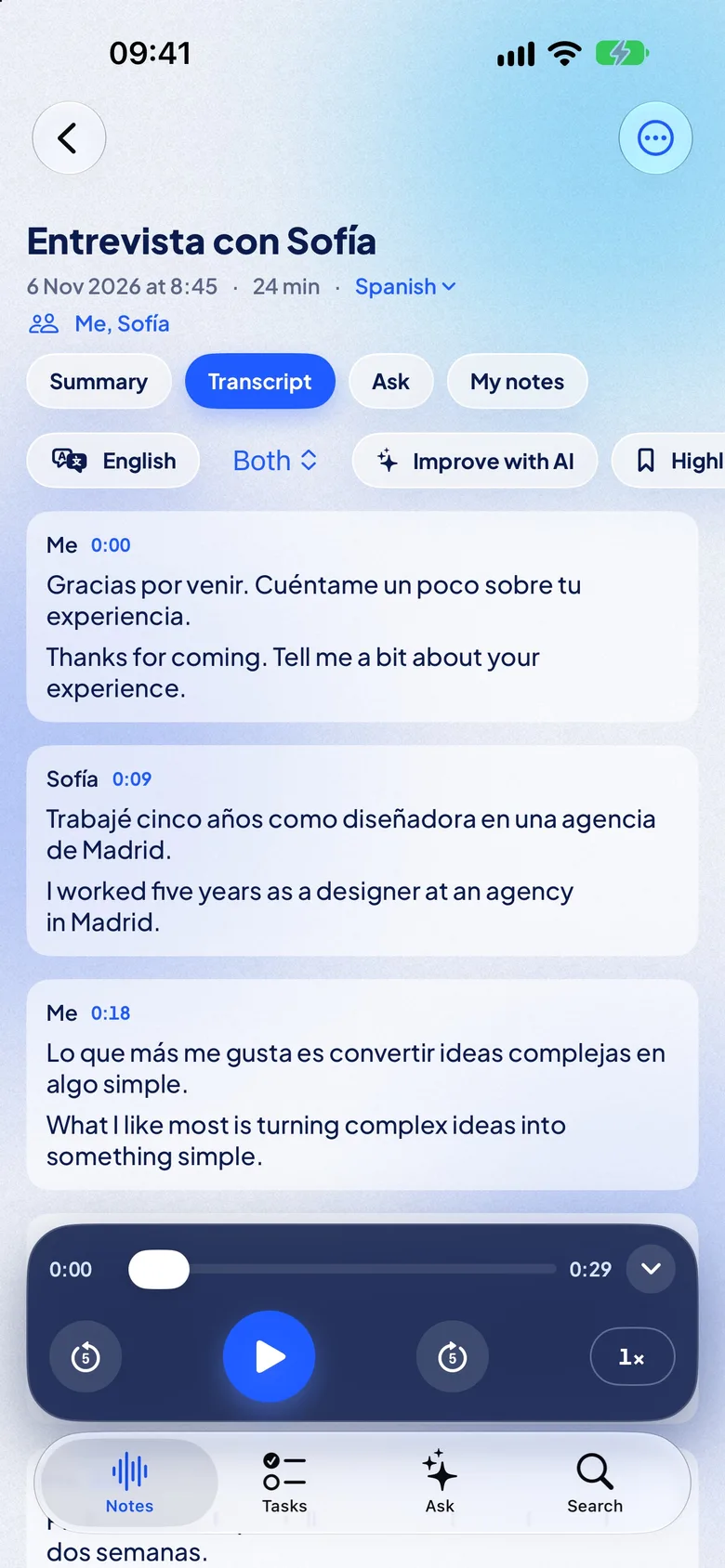
NotizPro is our app, made for the meeting in the room. It records what the iPhone microphone hears and writes the transcript on the iPhone while people speak. The accurate version, with punctuation, paragraphs and the time of every word, is ready seconds after you tap Stop.
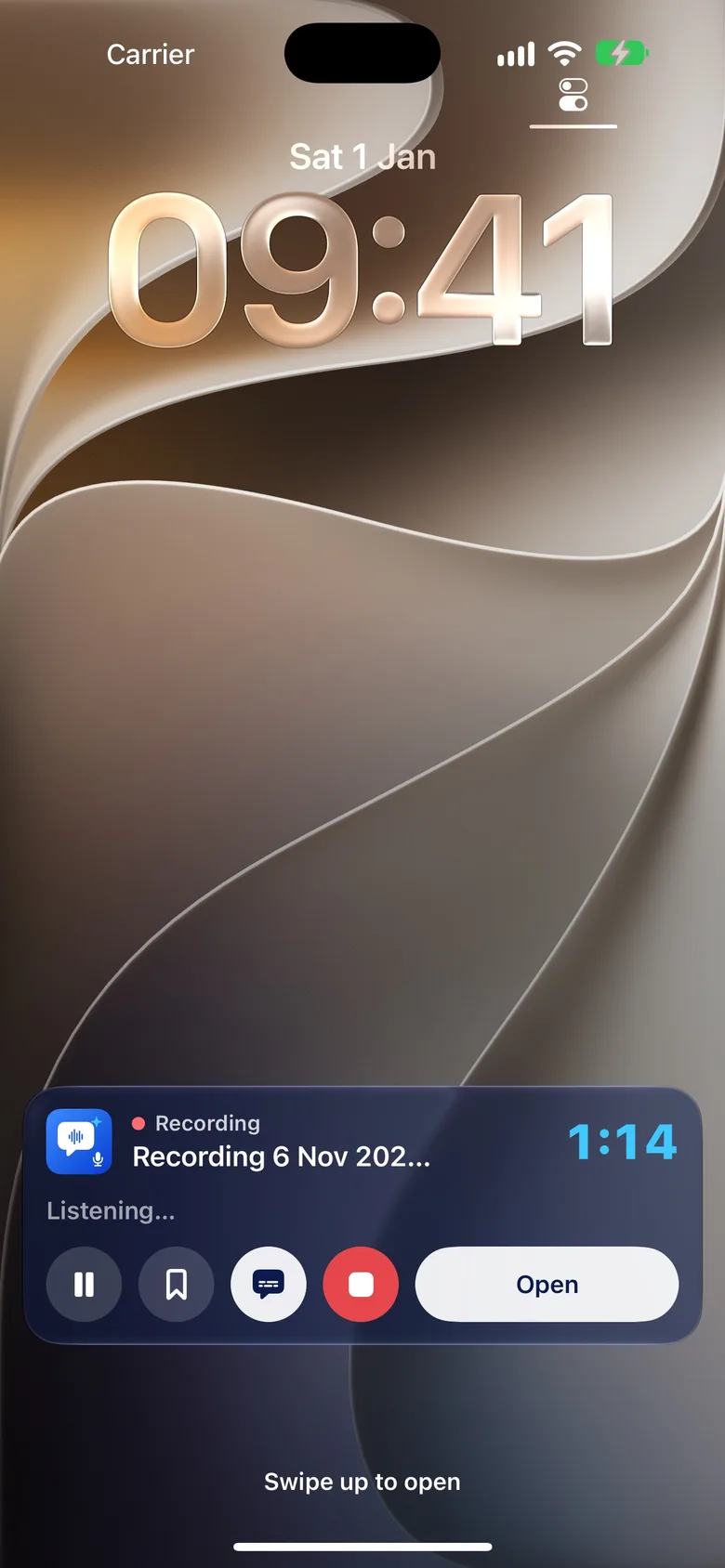
- Start fast: from Control Center, the Action Button, the Lock Screen, Siri or Shortcuts. It keeps recording with the screen locked; the Lock Screen and Dynamic Island show the timer with Pause, Highlight and Stop.
- Mark moments: Highlight marks the last 15 seconds by default; Quick note pins a typed note to the current second. Take a photo of the whiteboard, and the text in it becomes searchable.
- Nothing lost: audio is saved every minute, and after a crash the recording is recovered on the next launch. A phone call pauses the recording and you choose when to resume. If AirPods disconnect, recording continues on the iPhone microphone.
- Your microphone: the iPhone, AirPods or a wired microphone. Audio takes about 29 MB per hour.
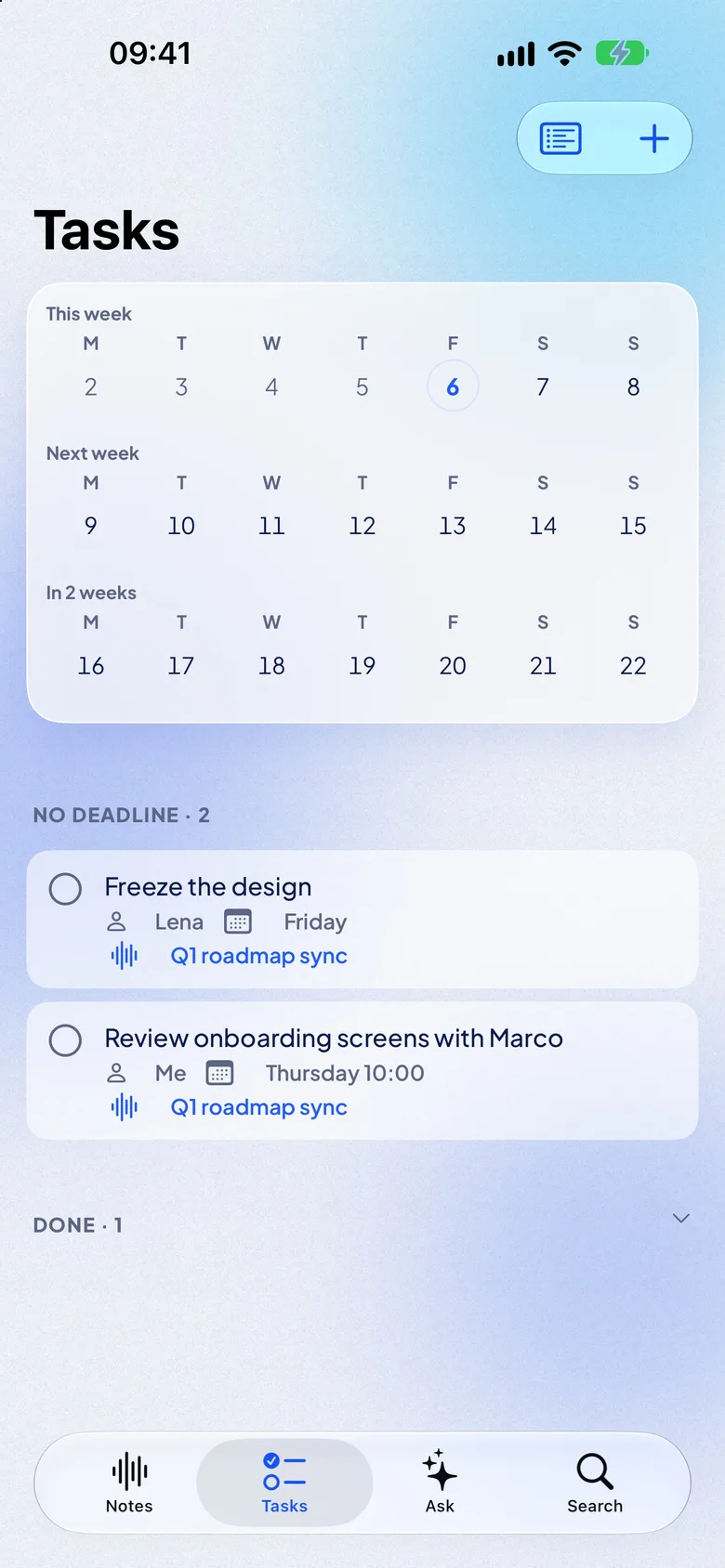
- After the meeting: a free summary on the iPhone with an overview, an outline with times, decisions, and tasks with owner and due date. The Tasks tab collects tasks from all notes; send them to Reminders.
- Who said what: the note lists the speakers with their talk time; rename them from Contacts.
- Find it later: export the transcript as text, Markdown, PDF or subtitles, ask “What did we decide?” across all notes, or search them and jump to the exact second.
It transcribes 21 languages: English, German, French, Spanish, Italian, Portuguese, Dutch, Polish, Ukrainian, Russian, Turkish, Swedish, Finnish, Japanese, Korean, Chinese (Mandarin), Cantonese, Indonesian, Malay, Thai and Vietnamese. Twelve are built into iOS with nothing to download; the other nine need a one-time download, and Turkish, Swedish, Finnish, Malay and Vietnamese need an iPhone with 6 GB of memory or more.
For a meeting in another language, Pro adds live translation: each sentence appears in your language about 2 seconds after it is spoken. It works offline after Apple’s one-time language download, on iPhone 11 and newer, and the note keeps both languages for a bilingual export. It translates into 20 languages: Arabic, Chinese (Simplified and Traditional), Dutch, English, French, German, Hindi, Indonesian, Italian, Japanese, Korean, Polish, Portuguese, Russian, Spanish, Thai, Turkish, Ukrainian and Vietnamese. Translating a finished note is free for everyone.
| Free | Pro | |
|---|---|---|
| Price | 0 | $1.99 a week, $4.99 a month or $29.99 a year, 7 days free |
| Minutes | 300 a month | No limit |
| One recording | 30 min, then Continue as Part 2 | No limit |
| Summary, Ask, Tasks | Yes | Yes |
| Live translation | — | Yes |
| iCloud sync and share links | — | Yes |
The limits, plainly:
- Built for meetings in a room. It does not record phone calls and does not join Zoom, Meet or Teams.
- Speakers after the meeting, not live. Check the names in the saved note.
- No published accuracy figure. Test it on a meeting you attended.
There is no account, nothing is sent to a server, and the audio stays on your iPhone unless you export it. Before you record a confidential meeting, still check your employer’s rules.
FAQ
Can my iPhone record a meeting and transcribe it automatically?
Yes. Record with Voice Memos or Notes on iPhone 12 or later, in a supported language, and the transcript is made for you. Tap the recording, then More, then View Transcript.
Are the steps different on iPhone 13, 15 or 17?
No. Recording works the same on every iPhone that runs iOS 27. The transcript needs iPhone 12 or later, and the AI summary needs iPhone 15 Pro, iPhone 15 Pro Max, or iPhone 16 and later.
Can I record a Zoom meeting with Voice Memos?
Not on the same iPhone: Voice Memos stops when another app plays audio. Use Zoom’s cloud recording, or join on a laptop and record the room with your iPhone.
Is it legal to record a meeting on my iPhone?
It depends on where you are and on your employer’s rules. The safe habit is the same everywhere: ask everyone first, and stop if someone says no.
Does the iPhone show who said what?
Only for recorded phone calls, in Notes. Apple’s Voice Memos and Notes recording guides do not mention speaker labels.
Does NotizPro summarize the meeting?
Yes, for free, on the iPhone: an overview, an outline with times, decisions, and tasks with owner and due date. Tap Add to Reminders to send the tasks to Reminders.
How long can NotizPro record?
Without a limit on Pro. On Free, 30 minutes at a time, then Continue as Part 2; both parts stay one conversation.
Can NotizPro translate a meeting while I record?
Yes, with Pro. Each sentence appears in your language about 2 seconds after it is spoken, offline after Apple’s one-time language download. See live translation.